
Log in to your Shopify Admin store and complete the following steps to create a full Shopify integration with ShopMy.
What the App Does
This app is a private connection between your Shopify store and ShopMy — it is created by you, installed only on your store, and its credentials are shared only with ShopMy. Once connected, ShopMy uses it to:
- Track orders automatically. Shopify notifies ShopMy the moment an order is created, updated, fulfilled, or cancelled — commissions are attributed, adjusted after returns and edits, and voided on cancellations, with no code needed on your storefront. A nightly sync backstops any notification Shopify fails to deliver.
- Manage creator discount codes. ShopMy creates and maintains the discount codes your creators share, so code-based orders attribute correctly.
- Read your catalog. Product and inventory data powers creator shelves and product links.
- Create gifting draft orders, only if you grant the optional draft-order scopes below.
What This Implies
- Order tracking runs entirely server-to-server. This app never touches your storefront, your checkout, or your site speed.
- ShopMy receives the order data covered by the scopes you grant — that is what keeps commissions accurate through returns, edits, and cancellations.
- If the app is uninstalled or its credentials change, ShopMy immediately stops receiving your order events. Sales stop tracking and creators stop earning commissions, usually with no visible error on your side. If tracking ever looks quiet, confirm the app is still installed and check your order events on the Tracking Health page.
Navigate to your Dev Dashboard
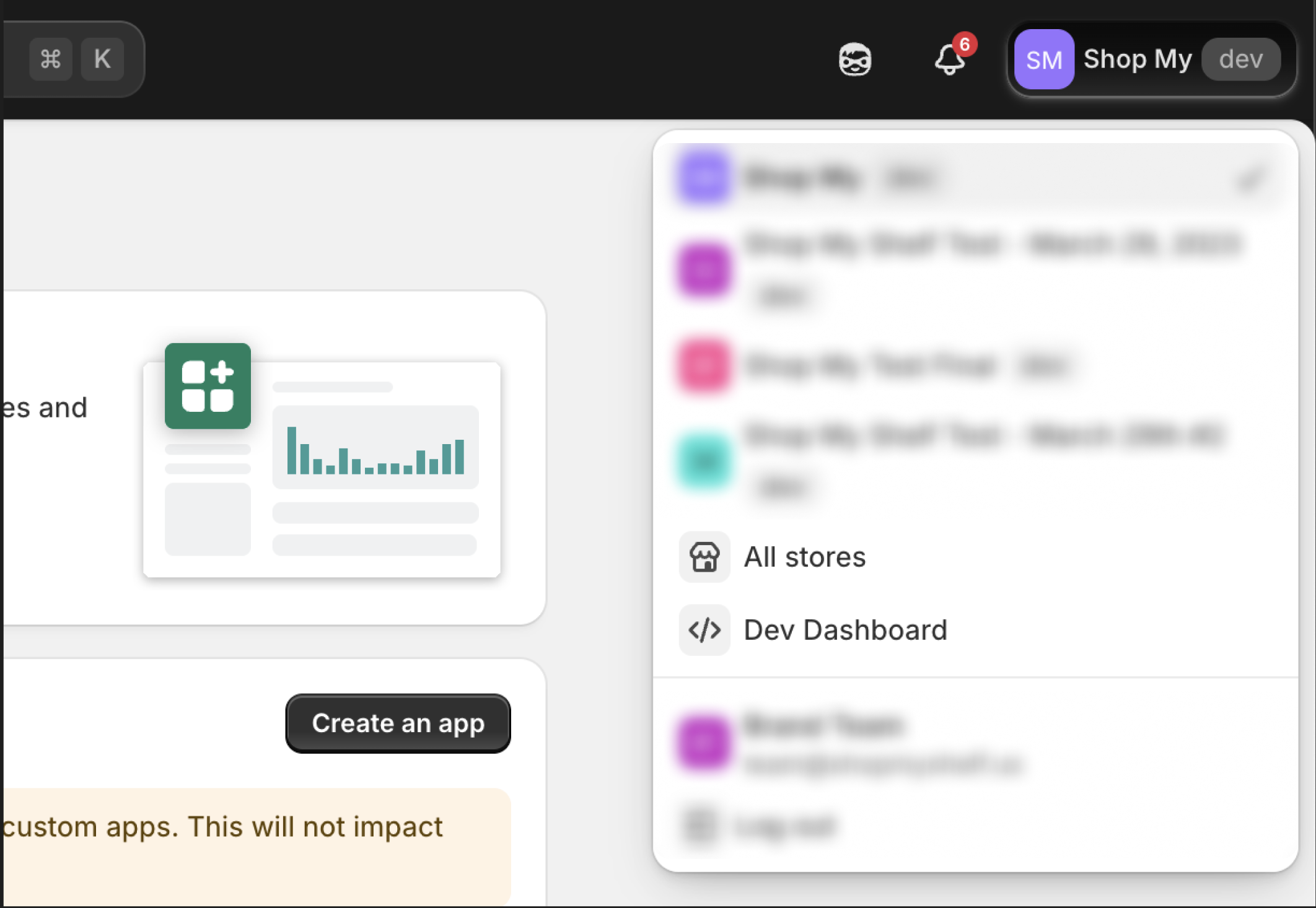
- Click your store name in the very top right part of your page.
- You should see a dropdown of all the stores in your organization.
- Click the "Dev Dashboard" option in that popup
Develop New App
- Click the "Create app" button in the top right corner
- Enter "Shopmy Integration" for your app name under "Start from Dev Dashboard"
- Click the "Create" button beneath your entered text

Configure App's Scopes
-
Scroll down to the "Access" section
-
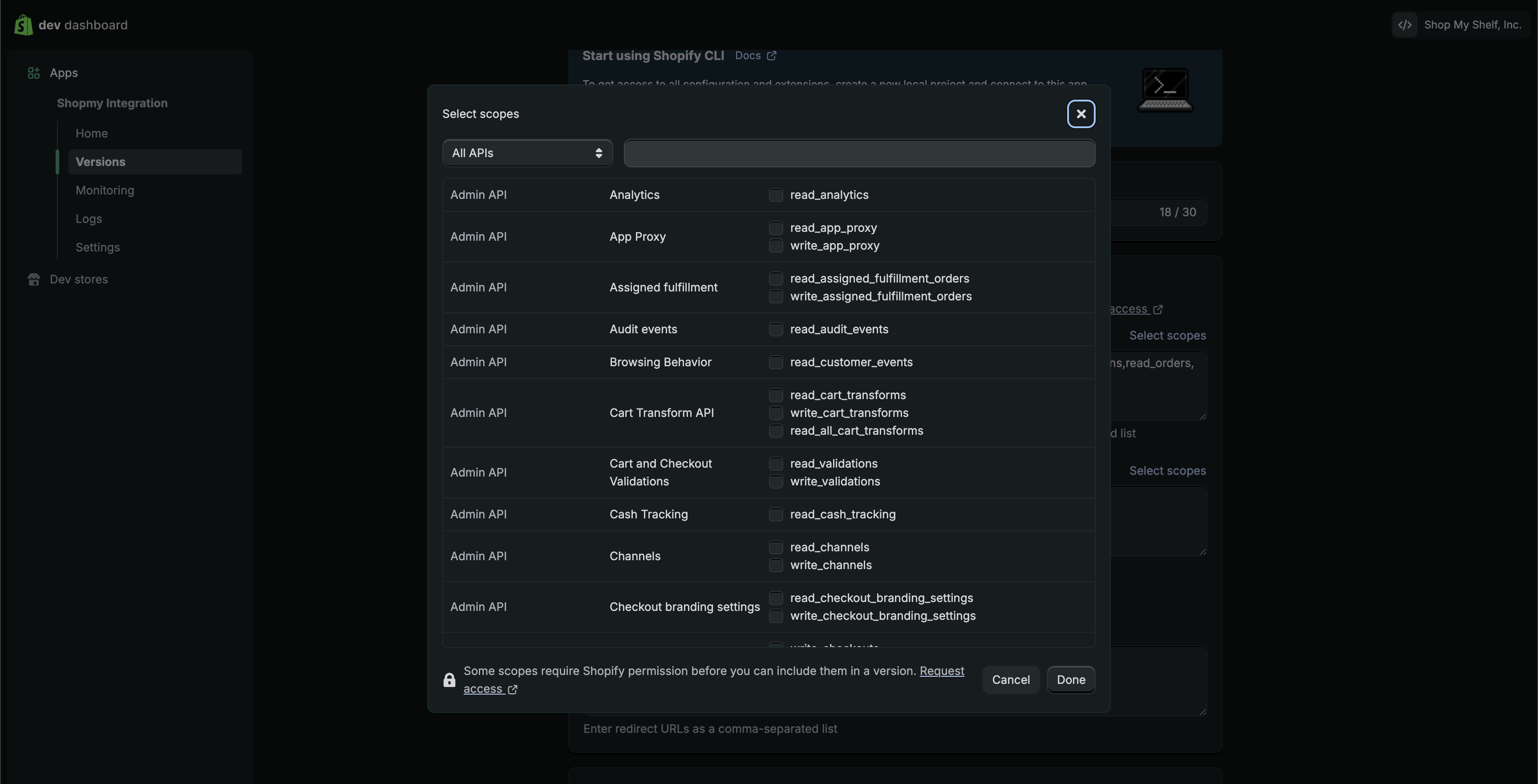
Click the top "Select scopes" button
-
Allow the following required scopes (9 total). Please note, if all of these permissions are not granted, your onboarding process will be halted:
write_discounts :: read_discountswrite_price_rules :: read_price_ruleswrite_orders :: read_ordersread_productsread_inventoryread_locationsread_shippingread_markets
-
Allow optional scopes (if needed):
read_customers- Add this scope if you are looking to do new vs returning customer commission rates. Please note we do not recommend this setting new vs returning rates as a strategy.write_draft_orders :: read_draft_orders :: write_customers- Add these scopes to enable us to create and complete Shopify draft orders for gifting to be compatible with Shopify Flow workflows you may have in place.
-
Scroll down to "Redirect URLs" section and paste in the following:
-
Scroll to the bottom or top of your page and click "Release"
-
Under "Release this new version?" you can leave that blank and click "Release"
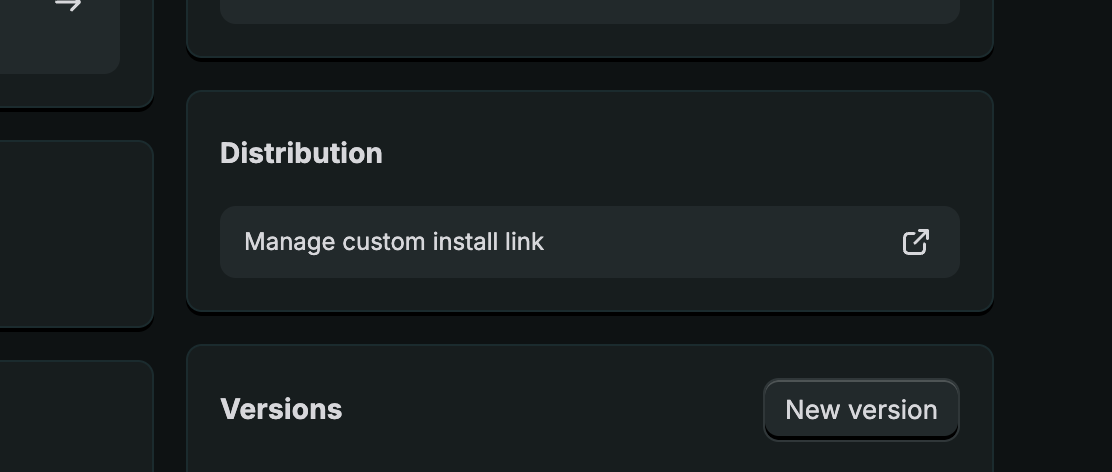
Select Distribution Method
- Go to app home by clicking "Home" on the top left of your screen
- Click "Select your distribution" found under the "Installs" section on the right side of your screen
- If you do NOT see this section you can skip this section all together (Go to Install Your App)
- Select "Custom distribution" then continue
- Under "Select custom distribution?" continue by clicking "Select custom distribution"
- Fill in the Store domain by filling in your myshopify.com url address.
- Click "Generate link" then "Generate link" again when a popup appears
- If this step fails you have filled in your myshopify url address incorrectly. You can repeat until this step succeeds
- Once this is complete you can close this tab
Install Your App
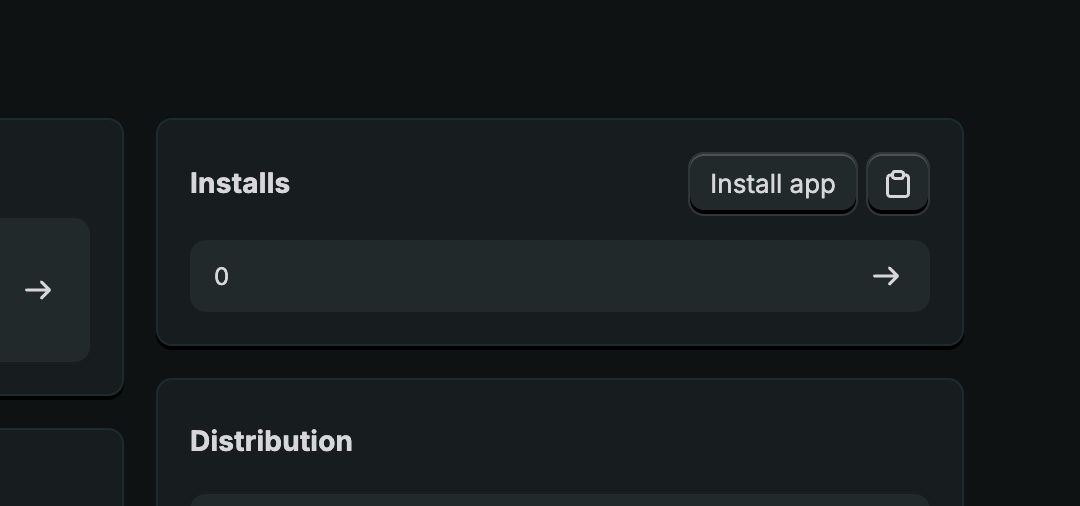
- Go to app home by clicking "Home" on the app tab
- Click "Install app" under the "Installs" section on the top right of your screen.
- Select the store you want to download this app to
- Click "Install" button on bottom right of page
- Once this is complete you can close this tab
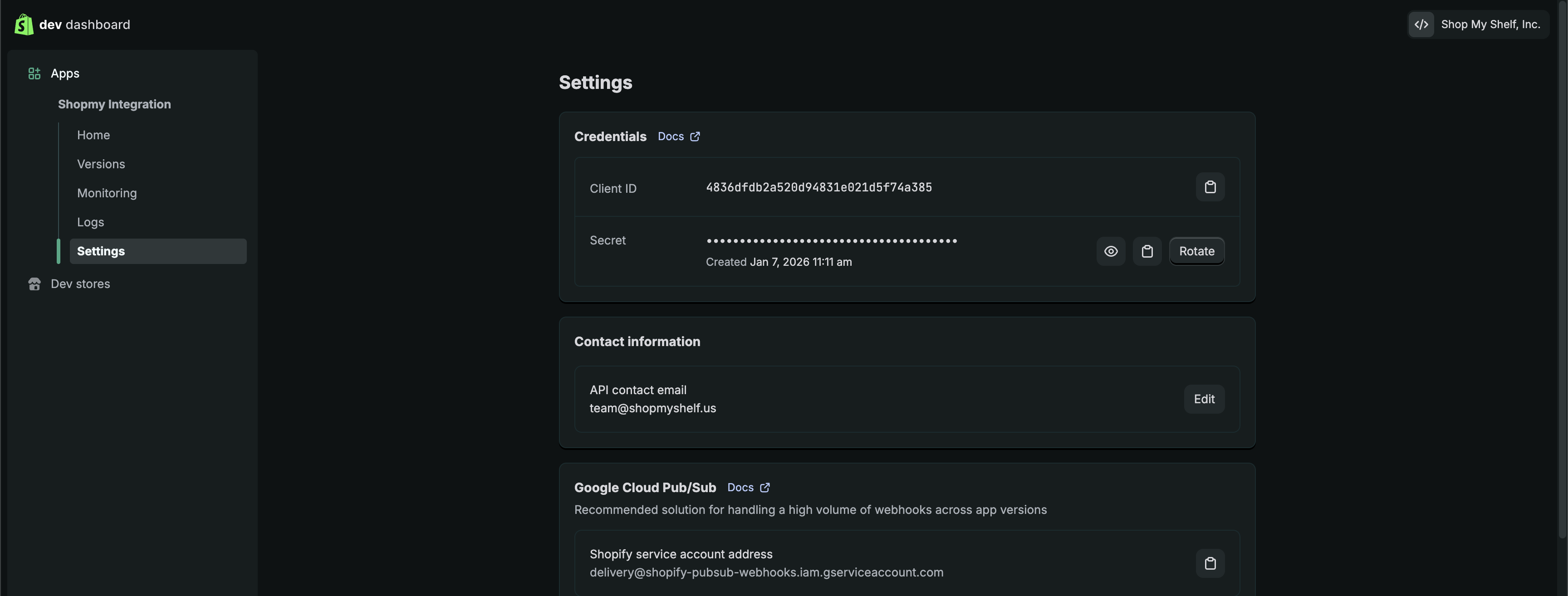
Get Your App Credentials
- Go to app settings by clicking "Settings" on the top left of your screen
- Note the "Client ID" and "Secret"
- Locate your shop name. This will be in the form of (shopname).myshopify.com. Only the shopname is needed.
- You will not be able to find this in your dev center, you will need to get this from your admin page.
Next Steps
After you complete the app setup on your end, please share the Client ID, Secret, and shop name values with our onboarding team. Our onboarding team will then add and test the integration in your ShopMy account.
Full Setup Overview
The following video provides a full overview of the previous steps for your review if needed:
By adding our integration code to your site, you are agreeing to the terms of the ShopMy affiliate network. Please review these terms here.