
This documentation outlines ShopMy integration setup for sites that use Shopify sites and checkout pages.
Step One: Integrate Click Tracking
Log in to your Shopify Admin store and complete the following steps to add click tracking:
- Navigate to Online Store, then Themes
- Click the "..." button next to "Customize" on your live theme
- From the Dropdown, click "Edit Code"
- Click "layout" in the left panel
- Click "theme.liquid" from the dropdown menu
- Add the one-line script from your onboarding flow to the end of this HTML file just before the closing
</body>tag - Click Save
Step Two: Integrate Order Tracking
Log in to your Shopify Admin store and complete the following steps to create a full Shopify integration with ShopMy.
Navigate to your Dev Dashboard
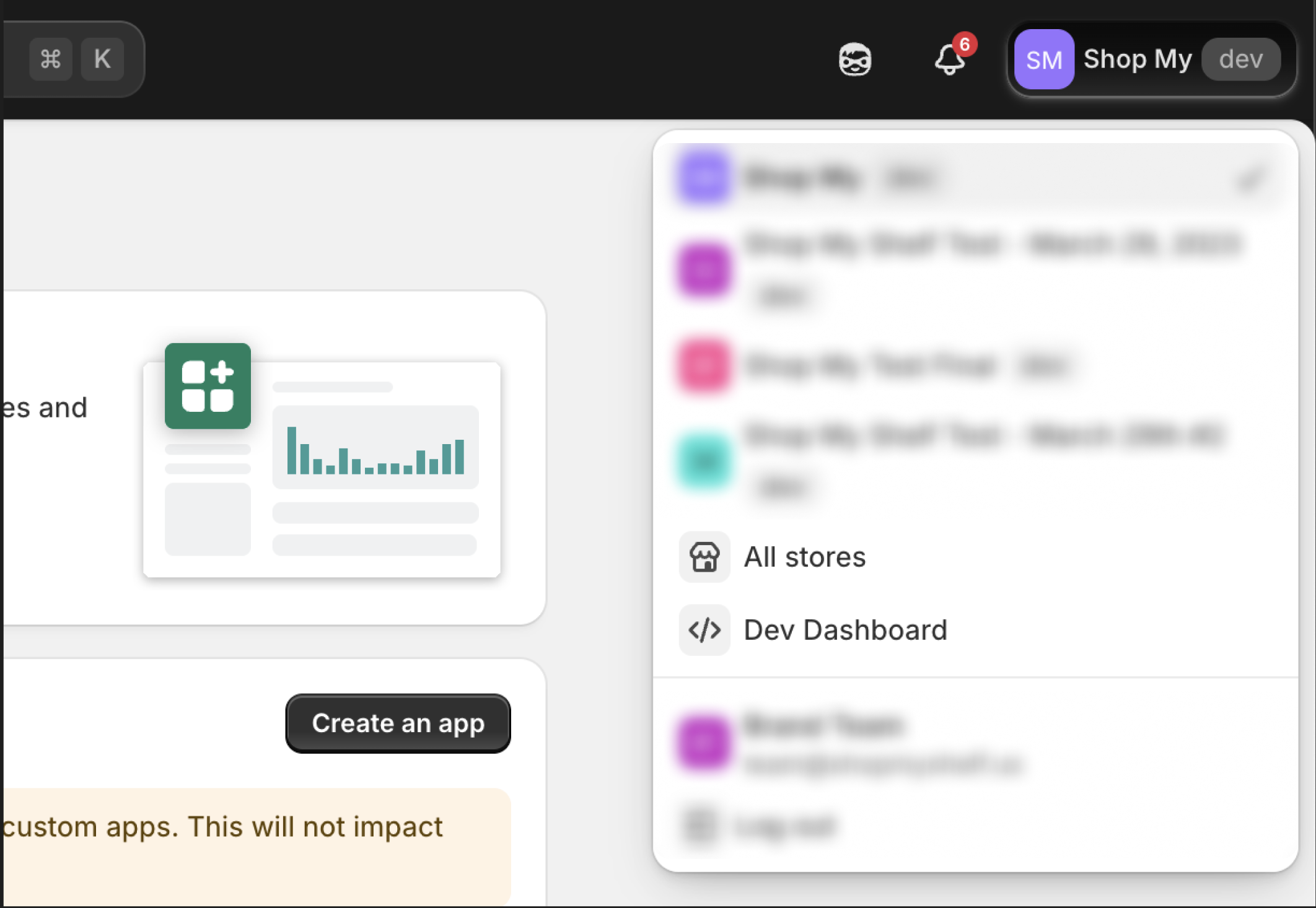
- Click your store name in the very top right part of your page.
- You should see a dropdown of all the stores in your organization.
- Click the "Dev Dashboard" option in that popup
Develop New App
- Click the "Create app" button in the top right corner
- Enter "Shopmy Integration" for your app name under "Start from Dev Dashboard"
- Click the "Create" button beneath your entered text

Configure App's Scopes
-
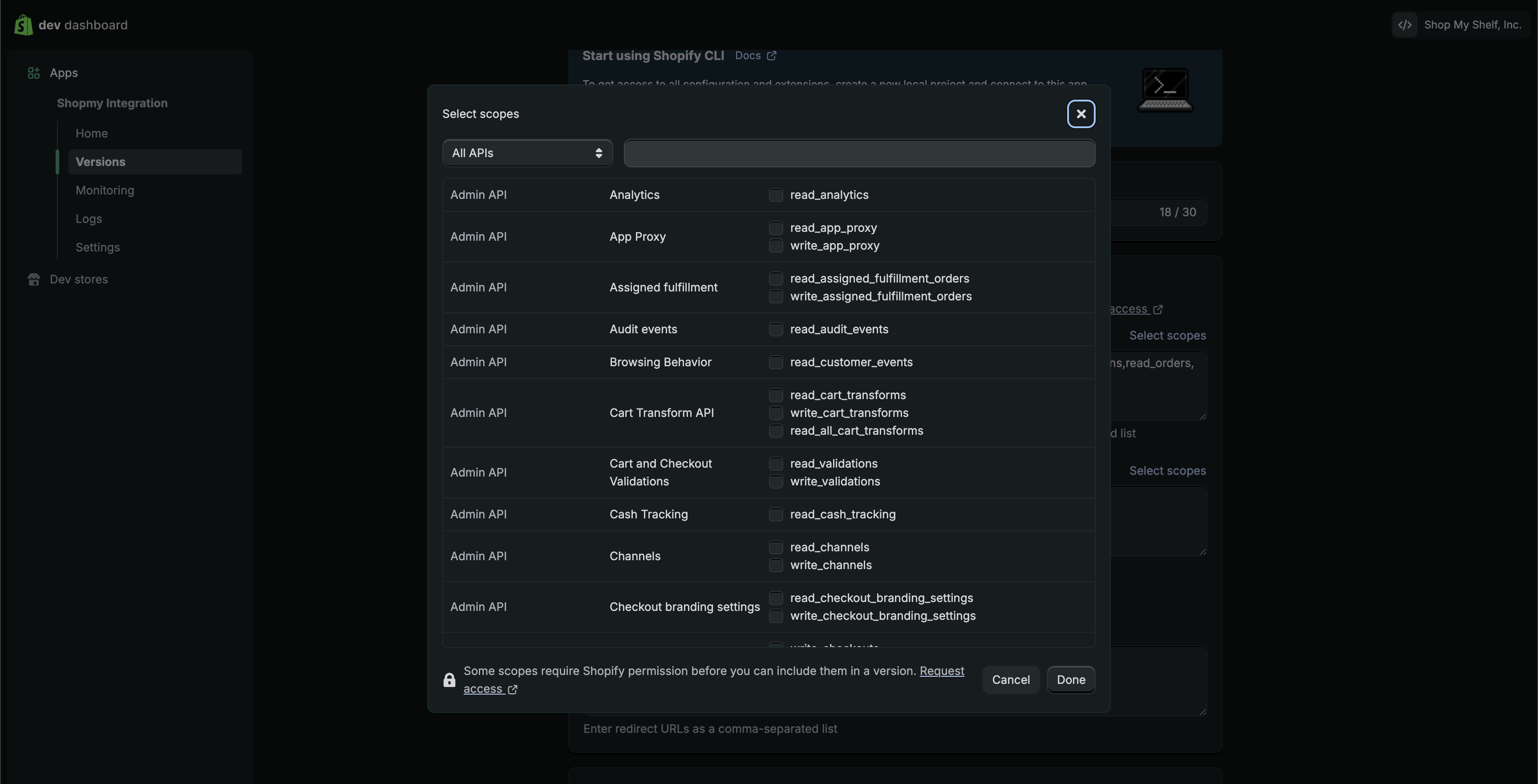
Scroll down to the "Access" section
-
Click the top "Select scopes" button
-
Allow the following required scopes (9 total). Please note, if all of these permissions are not granted, your onboarding process will be halted:
write_discounts :: read_discountswrite_price_rules :: read_price_ruleswrite_orders :: read_ordersread_productsread_inventoryread_locationsread_shippingread_markets
-
Allow optional scopes (if needed):
read_customers- Add this scope if you are looking to do new vs returning customer commission rates. Please note we do not recommend this setting new vs returning rates as a strategy.write_draft_orders :: read_draft_orders :: write_customers- Add these scopes to enable us to create and complete Shopify draft orders for gifting to be compatible with Shopify Flow workflows you may have in place.
-
Scroll down to "Redirect URLs" section and paste in the following:
-
Scroll to the bottom or top of your page and click "Release"
-
Under "Release this new version?" you can leave that blank and click "Release"
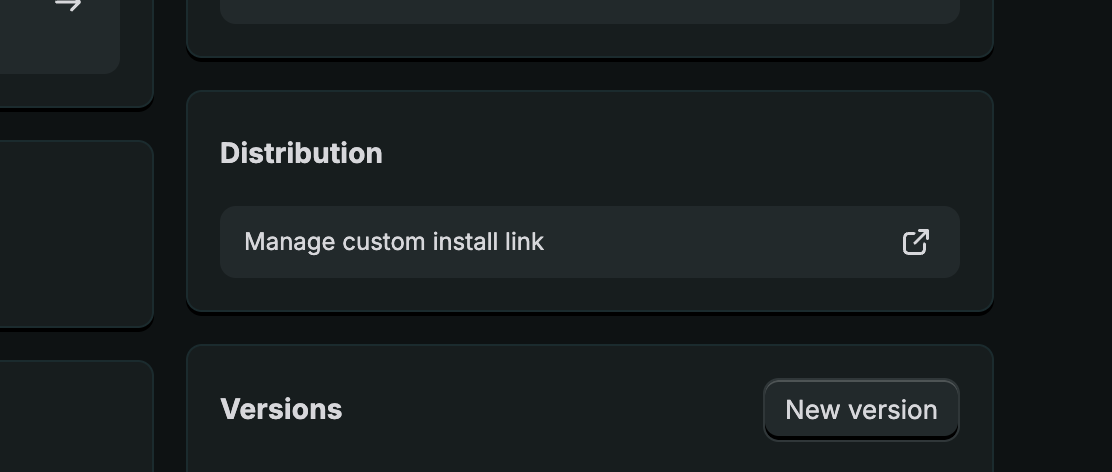
Select Distribution Method
- Go to app home by clicking "Home" on the top left of your screen
- Click "Select your distribution" found under the "Installs" section on the right side of your screen
- If you do NOT see this section you can skip this section all together (Go to Install Your App)
- Select "Custom distribution" then continue
- Under "Select custom distribution?" continue by clicking "Select custom distribution"
- Fill in the Store domain by filling in your myshopify.com url address.
- Click "Generate link" then "Generate link" again when a popup appears
- If this step fails you have filled in your myshopify url address incorrectly. You can repeat until this step succeeds
- Once this is complete you can close this tab
Install Your App
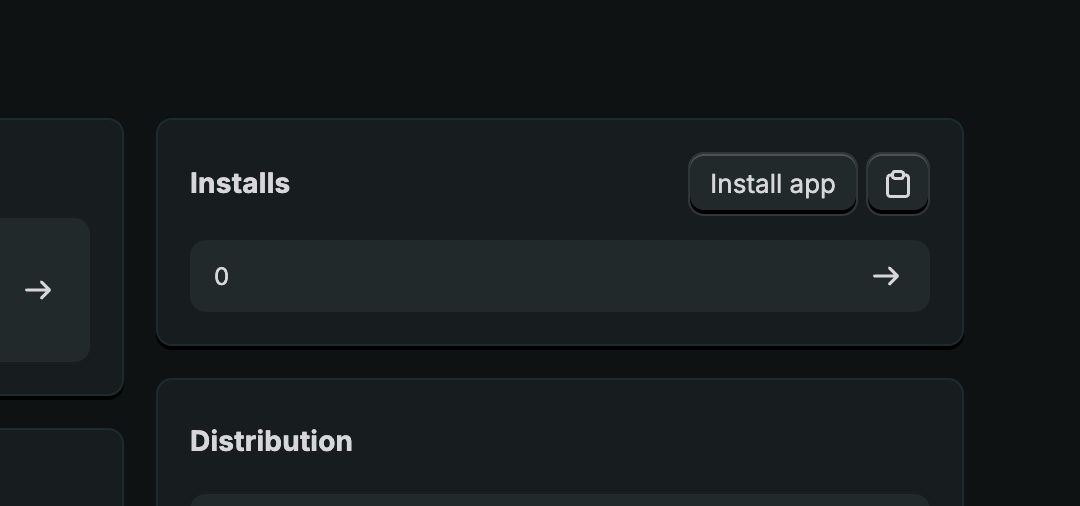
- Go to app home by clicking "Home" on the app tab
- Click "Install app" under the "Installs" section on the top right of your screen.
- Select the store you want to download this app to
- Click "Install" button on bottom right of page
- Once this is complete you can close this tab
Get Your App Credentials
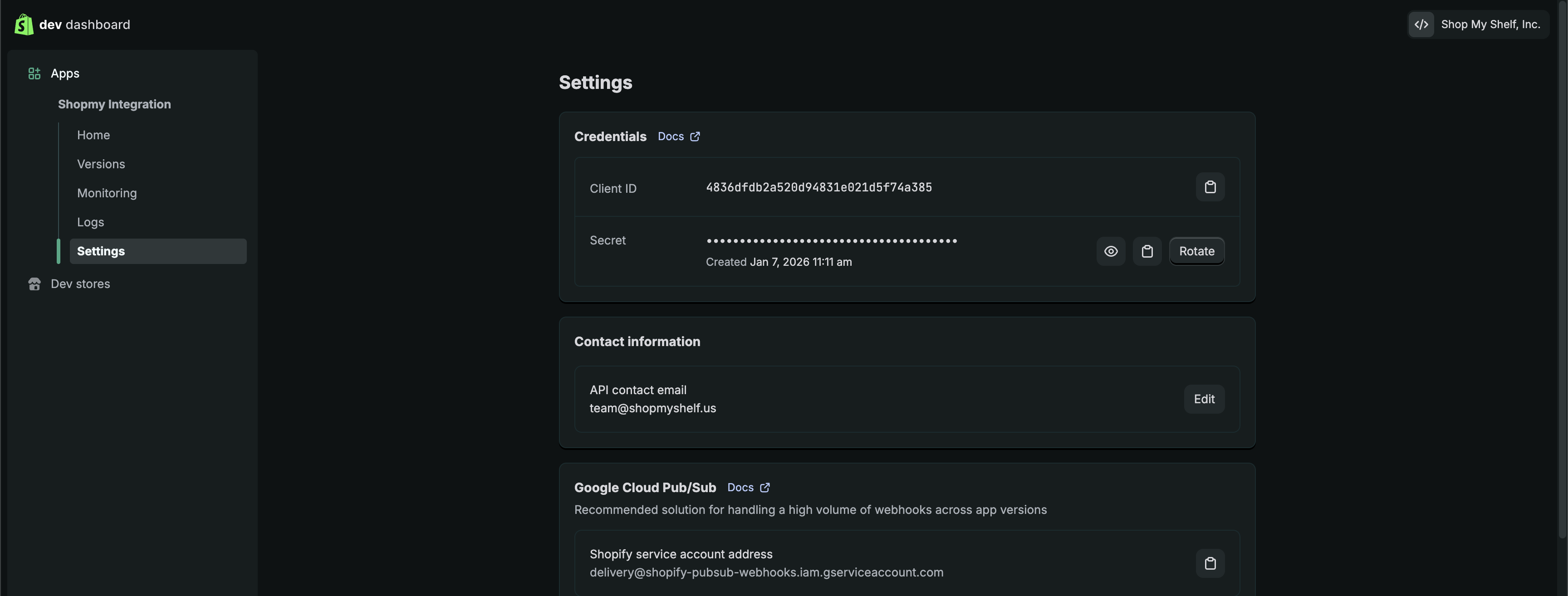
- Go to app settings by clicking "Settings" on the top left of your screen
- Note the "Client ID" and "Secret"
- Locate your shop name. This will be in the form of (shopname).myshopify.com. Only the shopname is needed.
- You will not be able to find this in your dev center, you will need to get this from your admin page.
Next Steps
After you complete the app setup on your end, please return to the ShopMy onboarding flow and input the Client ID, Secret, and shop name values.
Full Setup Overview
The following video provides a full overview of the previous steps for your review if needed:
By adding our integration code to your site, you are agreeing to the terms of the ShopMy affiliate network. Please review these terms here.